Please ensure pop-ups are enabled. For the best experience, use Google Chrome.
Staff guide
Using your Chromebook
A practical starting point for people arriving from a Mac, and a useful refresher for Windows users too. Your Chromebook is built around Chrome and Google Drive: sign in with your work account and most of your work follows you.
tips_and_updates
The mental switch Save work in Google Drive, not Downloads. Downloads stays on this Chromebook and may not be available when you use another device.
start
Start here Sign in with your TC Google account. Use Chrome for web apps. To find an app or file, press the G key on your keyboard, start typing, then press Enter.
keyboard
Mac and Windows keys, translated
⌘ Command / Ctrl
Ctrl
⌥ Option
Alt
Spotlight / Start menu
GG key
Mission Control / Task View
filter_noneShow windows key
folder_open
Find and save files
Press the G key, type Files, then press Enter. Use My Drive for files you are working on and Shared drives for files the team needs to keep. When saving, choose Drive instead of Downloads.
Press the dedicated Screenshot key in the top row. It has this corners icon: crop_free. Choose full screen, a window or an area. Screenshots first save to Downloads—move anything you need to keep into Drive.
Tips for our Lenovo Chromebook Plus 14 This guide is for the Lenovo Chromebook Plus 14 with the Kompanio Ultra 910 processor. Its G key is your starting point for apps, files and search. The top row has a dedicated Screenshot key—there is no need to remember a shortcut. If a video call cannot see you, check that the small physical privacy shutter above the camera is open. Use the keyboard-backlight key in the top row to make the keys easier to see in a dim room.
GG keyFind apps, files and web results.
crop_freeScreenshot keyTake a screenshot or screen recording.
filter_noneShow windows keySee all your open windows.
The things you will use most
01
Open or find anything
Press the G key. Start typing the name of an app, a file, a person or a web address. Press Enter when the result you want is highlighted.
02
Work with windows
Use Alt + Tab to switch between apps. To put two windows side by side, use Alt + [ for the left or Alt + ] for the right.
03
Print a page or document
Open the item, press Ctrl + P, choose the named office printer, then select Print. If no office printer appears, use IT & Platform Support.
04
Change Wi-Fi, sound or display settings
Select the time at the bottom-right. The quick-settings panel is where you connect to Wi-Fi, choose audio output, change brightness and open full Settings.
If something is not working
01
You cannot connect to Wi-Fi
Select the time at the bottom-right, then select Wi-Fi. Make sure Wi-Fi is on and choose the office or home network again. If it asks for a password you do not know, stop and contact IT rather than repeatedly guessing.
02
A web page or app is stuck
First press Ctrl + R to refresh the page. If that does not help, close only that tab with Ctrl + W, then open it again. Google Docs saves changes automatically while you are online.
03
The Chromebook has frozen
Press and hold the power button until the screen turns off. Wait 10 seconds, then press power once to start it again. If you were working in a Google document, check the document after signing back in—it normally saves automatically.
04
A file seems to be missing
Press the G key, search for the file name, then check My Drive, Shared drives and Trash in Files. Do not assume it was deleted because it is not in Downloads.
05
Your camera does not work in a call
Check the small privacy shutter above the camera is open. In Meet, Zoom or Teams, also check that the camera button is not crossed out. Leave and rejoin the call once before asking for help.
location_on Australia offices only
Staff guide
Meeting rooms
Google Meet is our default for video calls. Large Meeting Room 5-5507, inside our Melbourne Connect office, uses Conferfly: the screen and room-controller tablet make joining, booking and presenting simpler.
These meeting rooms are managed by Melbourne Connect, not The Conversation.
construction
Coming soon
Room-specific guidance is on its way
We will add instructions here once the equipment and controls have been confirmed. For now, follow the guide posted in the room or ask Melbourne Connect reception for help.
The room controller is the tablet in Large Meeting Room 5-5507. Use this guide to reserve the room for a planned meeting.
Best for planned meetings
Schedule Large Meeting Room 5-5507 in Google Calendar
Create or edit your event in Google Calendar.
Click Search for a room or resource. If you cannot see it, click Add rooms or resources.
Type Australia to show the Australian rooms, then choose Large Meeting Room 5-5507.
Add Google Meet if people will join remotely, then save the event. Check that the room did not decline the booking because of a clash.
When it is time to meet, use the tablet on the table: select your event, then tap Join meeting. This starts or joins the Meet from the room—do not start it separately on a laptop.
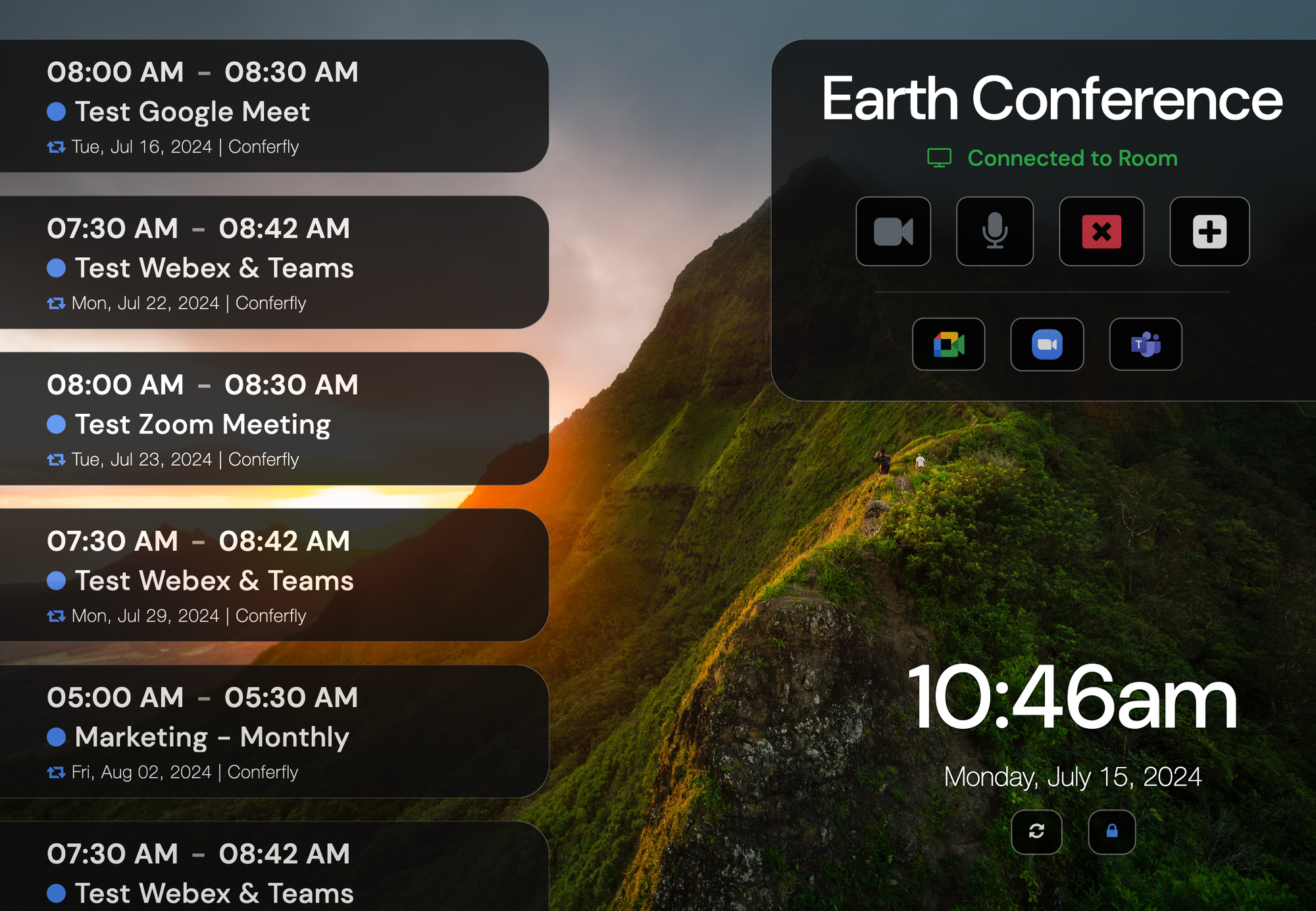
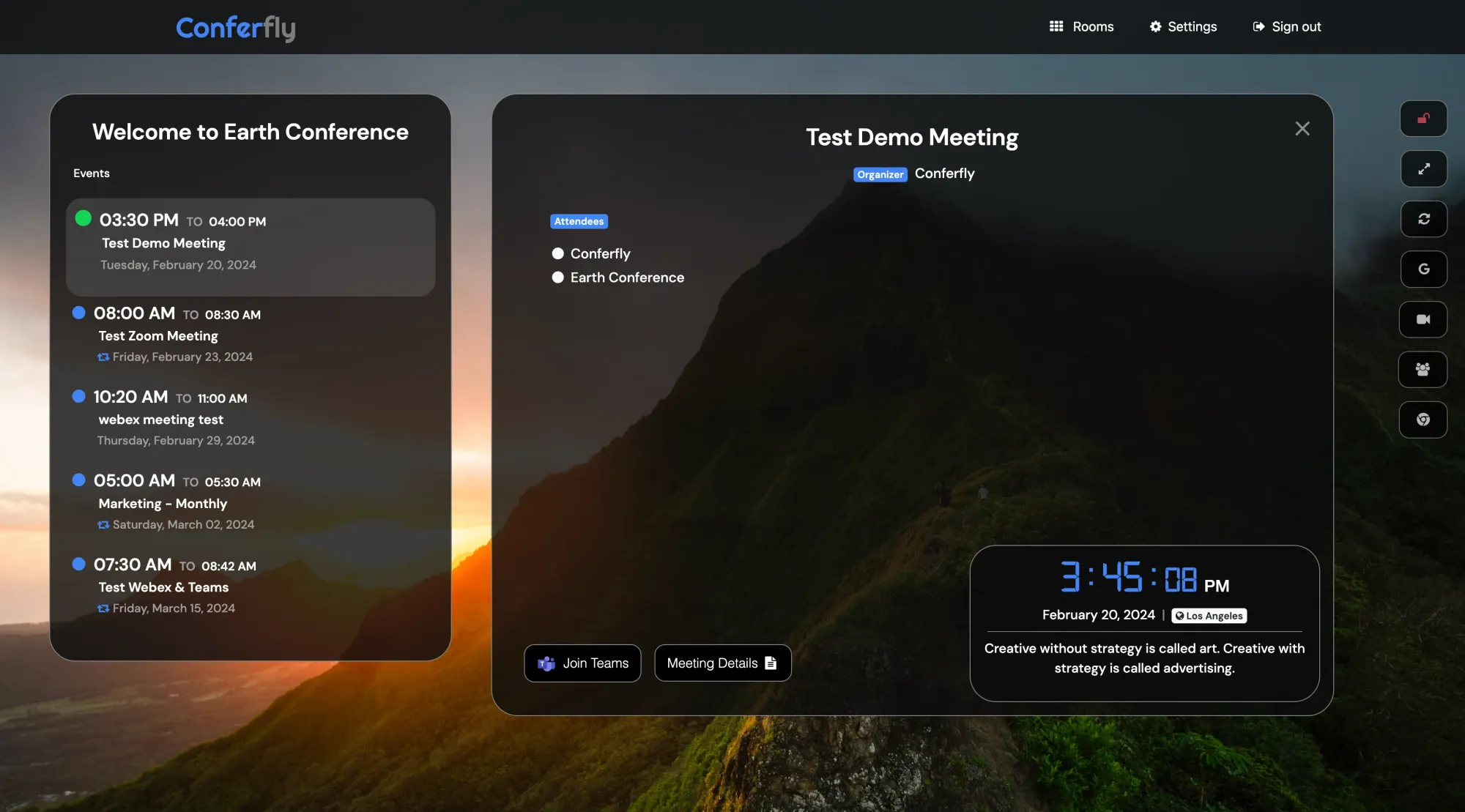
Example room-controller tablet. Select the event, then use Join meeting. Image: Conferfly.
refresh
Cannot see your event? Use the refresh control on the tablet on the table. Conferfly normally syncs every few minutes; refresh brings in the latest calendar changes.
Need the room now?
Schedule directly on the room-controller tablet
On the tablet, tap the + button.
Select Book room.
Add a short meeting title, at least one attendee, and the date and time.
Add Google Meet if anyone will join online, then tap Book.
Once it appears in the event list, select it and tap Join meeting when you are ready.
The booking feature is enabled in this room. The + button can also start an instant Google Meet if you do not need a calendar invitation. In both cases, the tablet starts the call—there is no separate laptop step.
Use this only to join an existing Google Meet using its meeting code. To start a new Meet or join a booking already shown on the tablet, use Schedule or book the room.
tips_and_updates
Tip: you can join a Google Meet from the room Unlike some Zoom and Teams meetings, you do not need to wait for the host to start a Google Meet first. Enter the code on the tablet on the table. If you see “Ask to join”, the organiser needs to admit the room.
Find the Google Meet link in the invitation or message. The meeting code is the last part of the link, for example abc-defg-hij in meet.google.com/abc-defg-hij.
On the tablet on the table, open the meeting tools and select Google Meet.
Type the meeting code, including the dashes, then tap Join. The room screen and room camera join the call from there.
If the other people cannot hear or see you, tap the microphone or camera icon on the tablet, then ask the organiser to check from their side.
When you finish, leave the Meet. Conferfly returns to the room display.
lock
Do not have a Meet link or code? Ask the organiser to send it. “Ask to join”? That is normal for a Meet organised outside The Conversation—ask them to admit “Large Meeting Room 5-5507”.
Use this when people are physically in the room and you only need to show a laptop screen. Do not start a Google Meet, Zoom or Teams call.
Staff laptop
Share your laptop to the room display
On the main room display, find the Conferfly sharing code in the top corner.
On your laptop, open sharetoroom.com. If Vendor (No Login Required) is available, choose it; otherwise sign in with your work account.
Enter the code, select Share screen, then choose the screen, window or Chrome tab to display.
To stop, select Stop on your laptop or close the sharing page.
wifi
Vendor is missing? That room is not allowing no-login sharing at the moment. Sign in with your TC account instead. Make sure you are on the office network; if the code fails, hold the room refresh button for three seconds to get a new code.
Visitor laptop
Let a guest show slides on the room display
Give the guest the sharing code shown on the main room display.
Ask them to open sharetoroom.com, choose Vendor (No Login Required), then enter the code.
Select Share screen and choose the presentation window or tab.
When the presentation is finished, select Stop or close the sharing page.
Example Conferfly room display. The sharing code is shown in the room interface. Image: Conferfly.
person
Vendor sign-in is unavailable? A TC host can sign in with their work account and complete the share. Vendor access depends on the room’s local-network sharing setting.
Use this for a Zoom meeting hosted by somebody else. Have the Zoom Meeting ID and passcode open on your phone or laptop, ready to type into the tablet on the table.
schedule
Tip: the host may need to start the meeting first Some Zoom meetings cannot be joined until the host has started them. If the room cannot join, contact the host and ask them to start the meeting. If you are in a waiting room, ask them to admit “Large Meeting Room 5-5507”.
tag
What is a Meeting ID? It is the long number that tells Zoom which meeting to open. It is not the room name or the organiser’s name.
Open the Zoom invitation. Look for Meeting ID and Passcode, usually below the blue “Join Zoom Meeting” link.
Cannot find both details? Ask the organiser to send the Meeting ID and passcode. This is quicker and more reliable than trying to interpret the join link.
On the room-controller tablet, open the meeting tools and select Zoom. Enter the Meeting ID and passcode, then tap Join.
Check that the room camera, microphone and speakers are selected. At the end, leave Zoom; Conferfly returns to the room display.
lock
Still waiting? Do not keep re-entering the Meeting ID. Contact the host and ask them to start the meeting or admit “Large Meeting Room 5-5507”.
Use this for a Teams meeting hosted by somebody else. Have the Teams Meeting ID and passcode open on your phone or laptop, ready to type into the tablet on the table.
schedule
Tip: the host may need to start the meeting first Some Teams meetings cannot be joined until the host has started them. If the room cannot join, contact the host and ask them to start the meeting. If you reach a lobby, ask them to admit “Large Meeting Room 5-5507”.
tag
What is a Meeting ID? It is the ID and passcode provided by the organiser for this particular Teams meeting. It is not the room name or the organiser’s name.
Open the Teams invitation and look at the top or bottom for Meeting ID and Passcode.
Cannot find both details? Ask the organiser to send the Meeting ID and passcode. This is quicker and more reliable than trying to interpret the join link.
On the tablet on the table, open the meeting tools and select Microsoft Teams. Enter the Meeting ID and passcode, then tap Join.
If the other people cannot hear or see you, tap the microphone or camera icon on the tablet, then ask the host to check from their side. When you finish, leave Teams; Conferfly returns to the room display.
lock
Still in the lobby? Do not keep re-entering the Meeting ID. Ask the host to start the meeting or admit “Large Meeting Room 5-5507”.
Try one thing at a time. The tablet on the meeting table is the room controller.
01
Your meeting is missing
On the tablet, use the refresh control. Wait a moment, then check the event list again. If it is still missing, check Google Calendar: Large Meeting Room 5-5507 must be included and must not have declined the booking.
02
People cannot hear or see the room
On the tablet, check that the microphone and camera icons are not crossed out. Leave the call, then join again. Ask someone in the call if they can now hear and see the room.
03
You cannot hear people online
Check the volume on the big room screen. Make sure the call has not been muted on the tablet, then leave and rejoin the call once.
04
Screen sharing will not start
Make sure the laptop is on the office network. For a room-only presentation, open sharetoroom.com, use the code from the big screen and try Vendor first. If the code fails, hold the refresh button on the room screen for three seconds to get a new code.
This form is used to onboard new employees and ensure they have the correct access to
systems within the organisation.
By completing this form, you will:
check_circleAutomatically generate a Google account
for the new employee.
check_circleAssign them to the appropriate department and
access groups for the tools they need.
check_circleEnsure a smooth offboarding process, as
their account will automatically be deactivated when their employment ends.
Please provide accurate details, as this information will be used for system access,
security permissions, and identity management.
If you are unsure about any fields, refer to your manager or IT support for guidance.
🚀 Let’s get started!
Admin Panel
Add New General Application
Add New Platform Team Application
Platform Team Applications
Private applications accessible to the Platform Team.